
1. Download the Mimio Mobile App
2. Open Mimio Studio on your PC or Laptop and select the following;
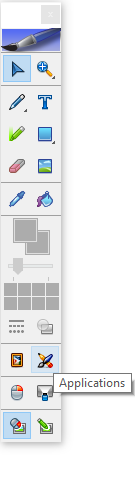
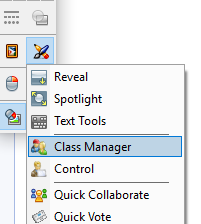
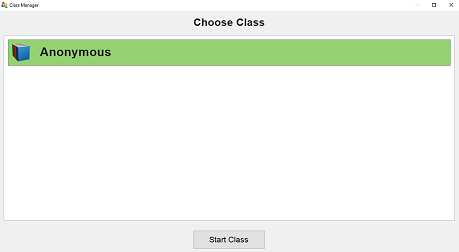
(On the toolbar) Select “Applications” > “Class Manager” > select start for desired class
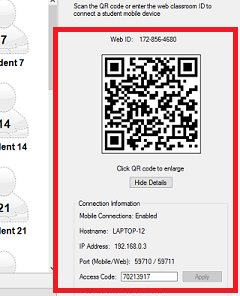
3. A QR code will appear, click the code to enlarge the image for easier scanning

There are 3 ways to connect the student device
QR Method- Open the Mimio app, tap the QR code and match 4 corner outline to the QR code on your laptop
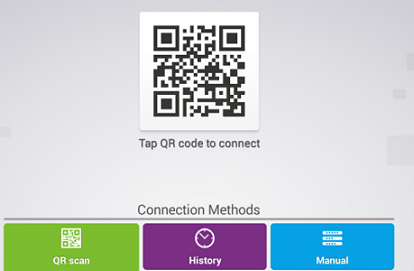
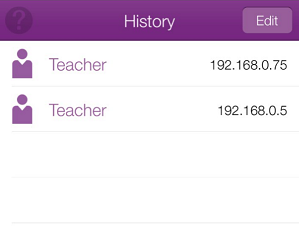
History- Select “History” and previous classes will appear for selection. (History will only save classes that have been named in Mimio Gradebook)
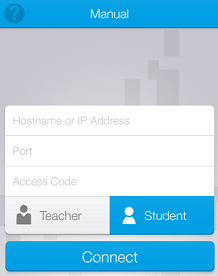
Manual- You will need to fill in all necessary fields which you can find next to the QR code
As each of your students connect you will see the student icon turn green
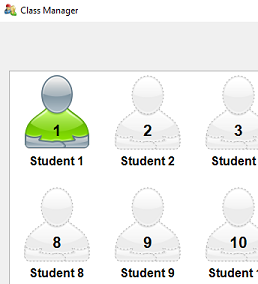
Once all students are connected click “OK” and you are ready to push out lessons
Comments
Please sign in to leave a comment.